
Send annual tax receipts to your donors
Email every donor who gave last year a link to their giving statement, or get a CSV so you can send your own. Includes the January to April window and the once-a-year limit.
At the start of the year, donors need a record of what they gave in the year just gone. Donately can email every one of them a link to their own giving statement, or hand you a spreadsheet so you can send your own.
Send the receipts
- Go to Contacts.
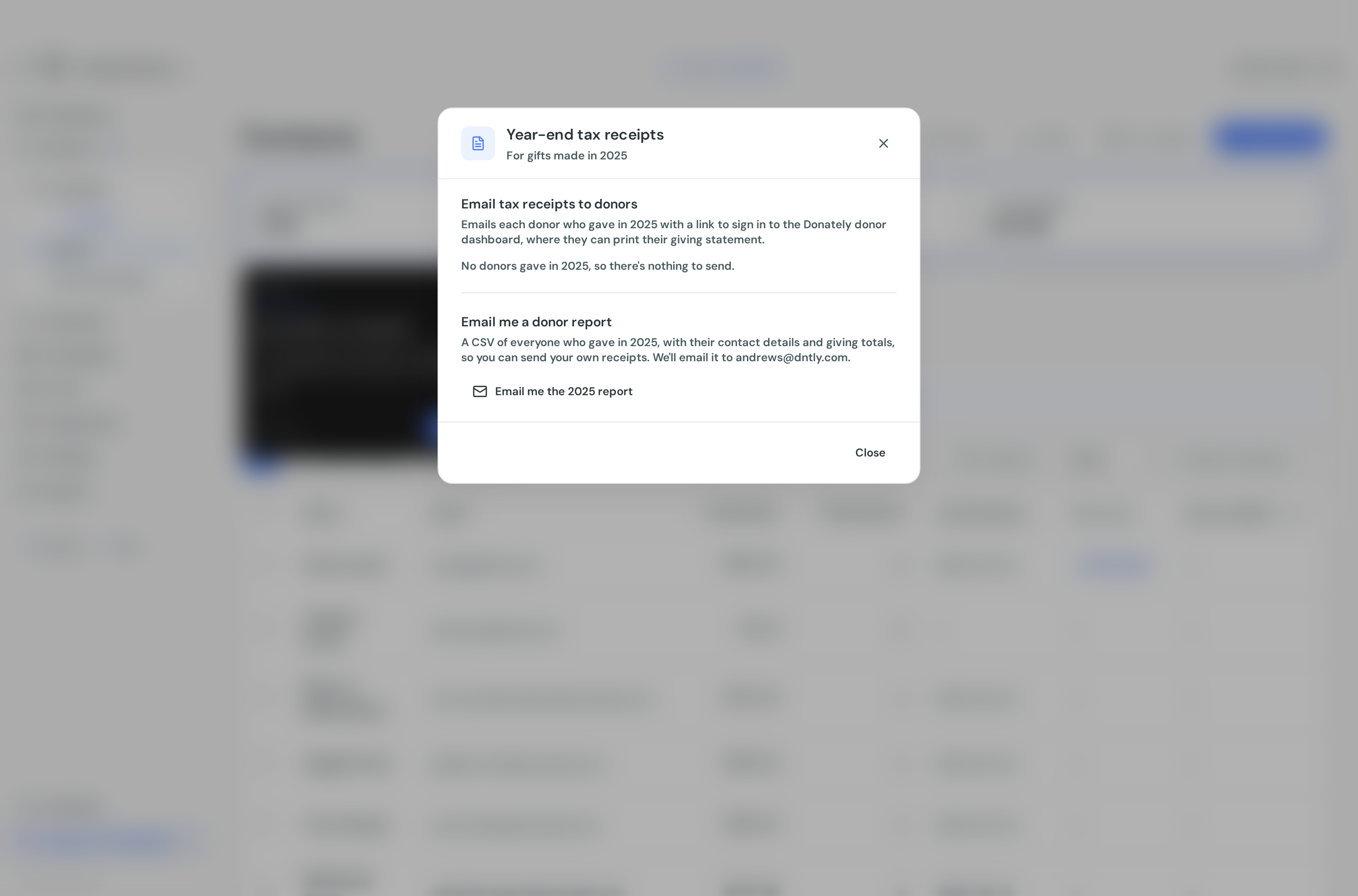
- Select Tax receipts in the header. The dialog is titled Year-end tax receipts, with the tax year it covers underneath.
- Under Email tax receipts to donors, check the donor count, then select Send tax receipt emails.
- Confirm. Donately queues the emails and they go out over the next few minutes.
Each donor gets an email with a link to sign in to their Donately donor dashboard, where they can view, print or save their giving statement. Donately does not attach a PDF: the statement lives in the donor dashboard so it is always accurate and the donor can come back to it. See Set up your donor dashboard.
Two rules to plan around
You can only send once per year. Once the batch has gone, the dialog shows how many donors it reached and the date, and says that year's receipts can only be sent once. There is no re-send, so check your donation records look right before you send.
The window is January to April. Outside those months the button is disabled, and Donately tells you when the next year's receipts open. Sending is not available in, say, November for the year currently in progress.
The tax year is the previous calendar year, and the recipients are every donor who gave in it and has an email address on file. Neither can be changed: there is no date picker, no segment and no way to exclude individual donors.
If you send your own statements
Plenty of organisations want to send a statement on their own letterhead, or post one. Use the second half of the same dialog.
Under Email me a donor report, select Email me the report. Donately sends you a CSV of everyone who gave in that tax year with their contact details and giving totals, ready to merge into your own letter or email.
This half has no seasonal window and no once-only limit, so you can request it whenever you need it and as often as you like.
For a different date range or more detail per gift, export the donations themselves instead: filter Donations by Gift date, then use Export and Email full export. See How to export data.
Before you send
Check your organisation's tax details. Your legal name and tax id appear on receipts. They are in Settings under the general section, as Tax name and Tax ID.
Check your receipt wording. The per-donation receipt templates, including the tax-deductibility line, are in Settings then Donation Receipts. See Donation receipts.
Make sure offline gifts are in. Cheques, cash and in-kind gifts only appear on a donor's statement if they were recorded in Donately. See Record a donation by hand and Import donations.
Check what was sent
Go to Communications under Contacts and filter by the Tax Statement email type. You can see which messages were delivered, bounced or failed, so you can follow up with the donors whose email addresses are out of date.
To send one donor their statement on its own, outside the January to April window or after the batch has gone, open that contact and use Send Tax Statement. See Email one donor a tax statement or dashboard invite.
To re-send a single donation's receipt rather than an annual statement, open that donation and use Resend Receipt.