
Import contacts and past donations
Bring donors and their giving history over from another platform with the CSV importer, including column mapping, duplicate handling and the dry run.
Moving from another platform, or catching up on gifts recorded in a spreadsheet, is self-serve. You upload a CSV, match its columns to Donately fields, and check a preview before anything is written.
This covers donors and their past gifts. Migrating active recurring donations is a different, support-assisted process, because it involves moving live payment credentials. See Import active recurring donations.
Import contacts
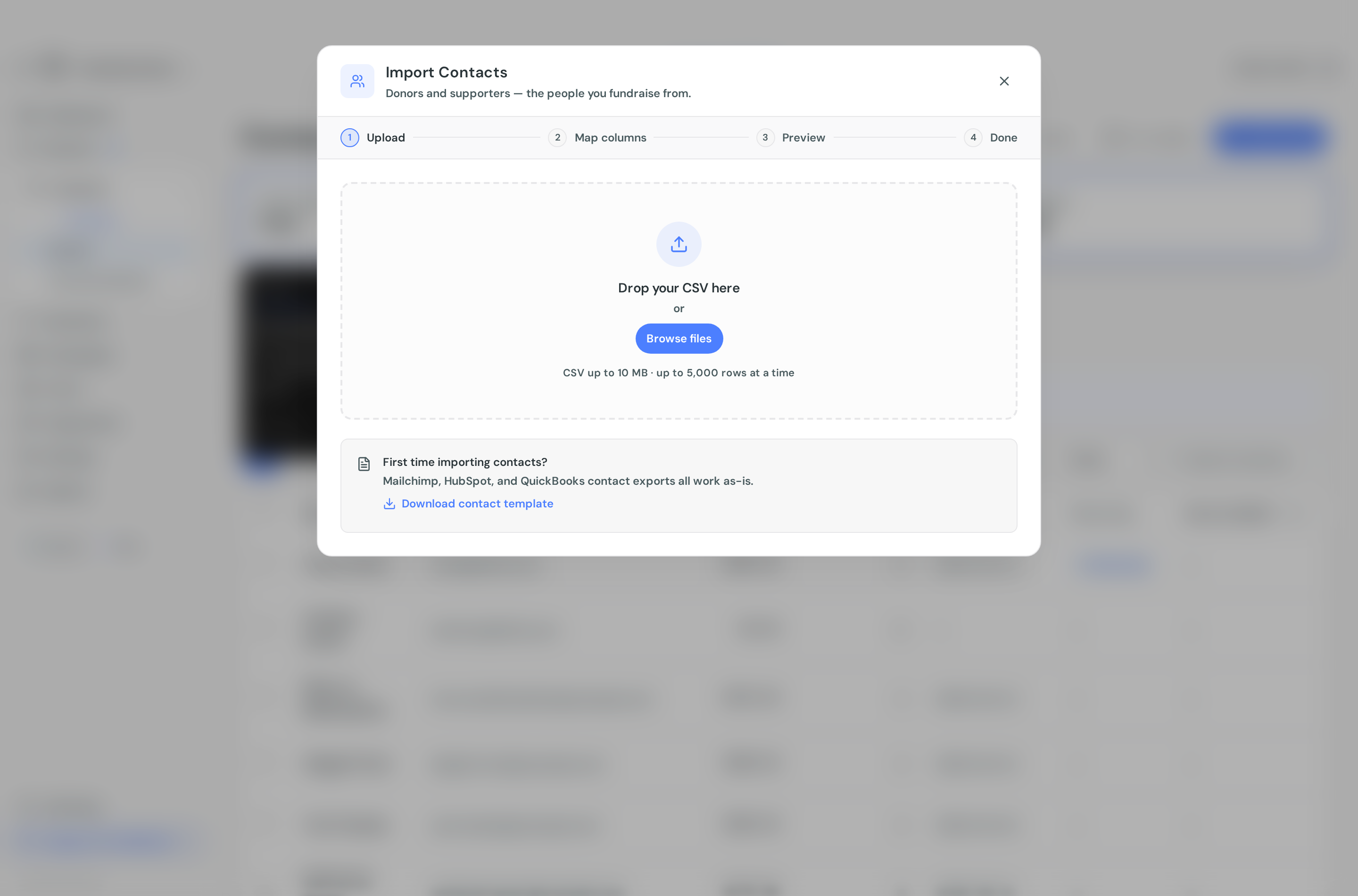
- Go to Contacts and select Import.
- Drop your CSV on the upload step, or use Browse files. If you are starting from scratch, Download contact template gives you a file with the right headers and a sample row.
- On Map columns, check the matches. Donately auto-matches most headers, and tells you how many it recognised. Each of your columns gets a dropdown: pick a Donately field, or Don't import.
- Continue to Preview, choose an Import mode, and review the rows.
- Select Import contacts.
Exports from Mailchimp, HubSpot and QuickBooks generally work without renaming anything.
Fields you can map: Email, First name, Last name, Full name, Phone, Address, Address 2, City, State, Zip, Country. Only Email is required. A Full name column is split at the first space.
Tags and notes cannot be imported onto a contact.
Import past donations
The same importer handles giving history. Go to Donations and select Import.
Every imported donation is recorded as an offline gift, not a new charge. Nobody's card is touched. Add an Offline type column to categorise rows as cash, check, in_kind or other; blank rows are treated as cash.
Fields you can map: Donor email, First name, Last name, Amount, Date, Currency, Phone, Address, Address 2, City, State, Zip, Country, Notes, Campaign ID, Fundraiser ID, Offline type, Check number, In-kind description, Other description. Donor email and Amount are required. Campaign and fundraiser ids are the cmp_ and fun_ ids from Donately.
Donors are matched to existing contacts by email, so contacts are created for anyone Donately has not seen before. You do not have to import contacts first.
Two extra controls appear on the mapping step for donations. Amount unit tells Donately whether your amounts are dollars or whole cents, and it guesses from your file. Date format decides whether 04/07/2024 means April 7 or 4 July, which only matters for all-number dates.
Bank statements, Stripe exports and PayPal CSVs all work as starting points.
Import modes
The preview step asks how the import should behave. Contacts offer three modes:
- Dry run (report only) imports nothing and emails you a report of what would have happened.
- Add missing only creates contacts that are not already in Donately, matched by email. This is the default.
- Add & update creates new contacts and updates existing ones.
Donations offer a dry run, Add missing only, and Add all, which creates every row even if it looks like a duplicate.
Run a dry run first on any real migration. It costs one extra pass and tells you exactly which rows would fail.
Duplicates
Contacts are matched on email. Nothing is ever deleted, and there is no merge step: the import mode decides whether an existing contact is skipped or updated.
Donations have no client-side duplicate check. Under Add missing only, the server skips a row that matches an existing gift on the same donor, date and amount.
File limits
CSV only. Other formats are rejected, so export as CSV first, and make sure the first row is your column headers.
Imports run in batches rather than all at once. Donately previews up to 1,000 rows at a time and processes several hundred per run, and it tells you on the preview screen when your file is larger than one run will take. Split a big file and import it in pieces.
What happens after you submit
The import runs in the background. The final screen says Import queued, and you get an email when it has finished or, for a dry run, with the report. There is no import history screen in the app, so keep the email.
Then check the result in the Contacts or Donations list.
A note on sample data
If your account is showing sample data, the importer simulates the whole thing and writes nothing. Switch to your live account to import for real.
Permissions
Importing is limited to account owners and admins. Some importers, including recurring plans and fundraisers, are still Donately-staff-only while they are being built out, and are marked with a key icon.