
Donation receipts: customise, replace or turn off
Add your own message to Donately's receipt, replace it with your own template, or switch receipts off per form or entirely. Plus what the receipt says for tax purposes.
Donately emails a receipt about half a minute after a donation settles. You can add your own words to it, replace it entirely, or switch it off.
Everything here is under Settings → Donation Receipts.
Pick one approach
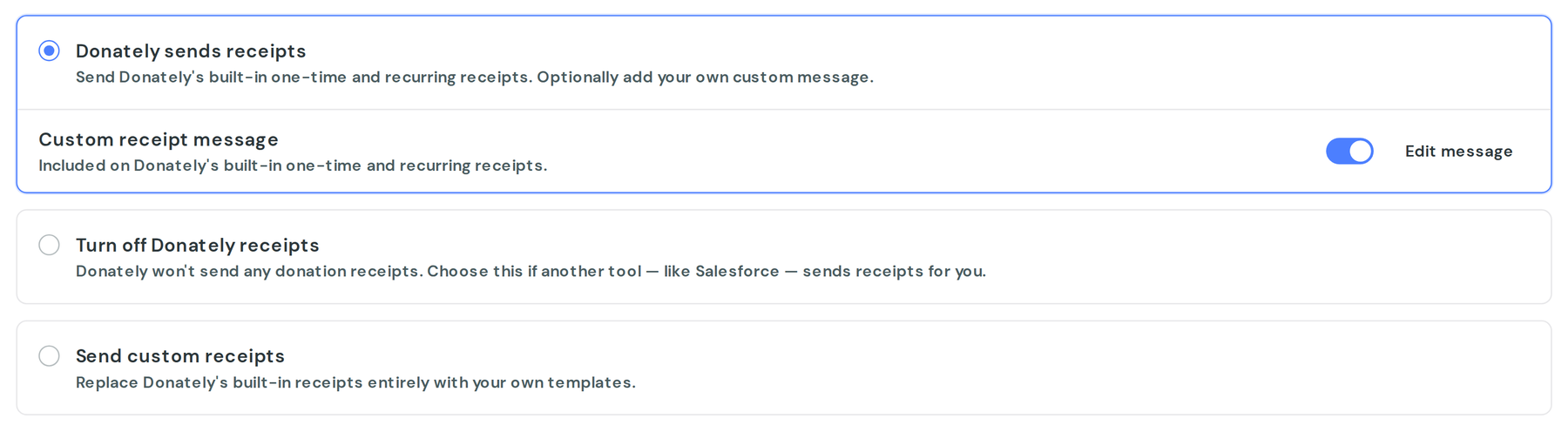
The Donation Receipts card offers three choices, and only one applies at a time:
- Donately sends receipts. Our receipt, optionally with a message of your own added to it. Most organisations want this.
- Turn off Donately receipts. Nothing is sent to donors. Choose this only if something else, such as your CRM, sends them instead.
- Send custom receipts. Your own template replaces ours. A one-time receipt is required, and you can add a separate one for recurring gifts.
Set the Reply-To Address on the Sender & Defaults card too, so a donor hitting reply reaches a mailbox you read.
Add your own message
With Donately sends receipts selected, switch on the custom message and click Add message. This is the quickest way to make a receipt sound like you: a thank-you in your own voice, what the gift pays for, a line about your work.
You can Preview it, and Send test mails a copy to yourself.
Replace the receipt entirely
Choose Send custom receipts, then Create the one-time receipt. The editor gives you:
- a Subject Line
- a Visual editor, with an HTML view if you prefer
- Merge tag insertion for donor and donation details
- Preview as a cash gift, in-kind gift, card gift, recurring gift or ticket purchase, so you can see how each renders
- Send test, which saves and mails a copy to you
- Reset to default template under Danger Zone if you want to start over
Useful merge tags include {{donor_full_name}}, {{donation_amount}}, {{donation_date}}, {{donation_campaign_title}}, {{account_title}}, {{tax_name}} and {{tax_id}}. Pick them from the Merge tag menu rather than typing them, so you know they exist.
Two things to watch:
- A custom receipt does not include the custom message from option 1. Your template is the whole email, so put everything in it.
- Anonymity is a yes/no flag, not a word. Use
{{#donation_anonymous}}…{{/donation_anonymous}}to show something only for anonymous gifts, rather than printing the value.
Adding your logo or social links
Our receipt does not have a logo control. If you want your logo, social buttons or anything else in the layout, use a custom receipt, where you control the HTML.
Turn receipts off
You can do this at three levels:
- For everything: choose Turn off Donately receipts. This wins over every other setting.
- For one form: in the form builder, After Donation, switch off Send email receipt. The builder then shows an Email receipts off badge so nobody wonders later. This also removes the line on the thank-you screen telling donors to expect one.
- For one recurring plan: the plan's edit drawer has an option to stop receipts for that plan's gifts.
A different receipt per campaign
This isn't available. Receipts are set at the account level, and the only variation built in is one-time versus recurring.
If different campaigns genuinely need different wording, the options are to keep one receipt general enough to cover both, or to turn Donately's receipt off for a specific form and send that campaign's receipt from your own system.
What the receipt says for tax
- Your Legal Organization Name (DBA) and EIN / Tax ID come from Settings → General, and appear on the receipt when your account is marked tax-exempt. Fill them in before your first donation rather than after.
- The statement that no goods or services were provided in exchange for the gift is included for ordinary donations, and left out when the gift was in-kind or included cart items such as tickets or merchandise, because it would not be true.
- Offline gifts show how they were given (cash, check, in-kind or other), with the check number or description you recorded.
We are not able to advise on what your receipts must say. The fields are there so your receipts can carry what your advisor tells you they need.
Year-end statements
An annual summary is separate from per-donation receipts. Go to Contacts and use Tax receipts to email donors a link to their giving statement, or to email yourself a report of everyone's totals. It's available January to April, and each donor can be sent one per tax year.
Resending and checking
Open any donation and use Resend Receipt if a donor lost theirs. Communications lists receipts sent in the last 45 days, which is the quickest way to confirm one went.
Manually recorded donations get a receipt too, unless you suppressed it when recording the gift.