
Test your donation form safely
Use a separate sandbox account, or put this account into test mode with Stripe test keys, then clean up afterwards.
Before you launch a form, give it a real run through with a test card. The important thing to understand first is how Donately decides whether an account is live or in test mode.
Test mode is account-wide and it comes from your Stripe keys. There is no in-app live/test switch and no per-form setting. An account holds one set of Stripe credentials at a time: live keys mean live, test keys mean test.
That matters because putting your live account into test mode replaces its live keys, and it cannot take real donations until you put them back.
The recommended way: a separate sandbox account
Because restoring live keys is a manual step, the safer pattern is to keep two Donately accounts: your live one, and a sandbox one that stays on test keys permanently. You can then test whenever you like while donations keep flowing on the live account.
- Go to Settings, then Payment Processors, and open Sandbox & testing.
- Select Create a sandbox account.
- On the new account, go to Settings, then Payment Processors, and paste your Stripe test keys there.
Switch between the two from the account menu in the top bar. Your live account is untouched throughout.
The other way: put this account into test mode
If you accept that the account cannot take real donations while you do it:
- Go to Settings, then Payment Processors, and open Sandbox & testing.
- Choose Advanced: put this account into test mode instead.
- In Stripe, turn on Test mode, go to Developers then API keys, and copy the publishable key (
pk_test_…) and the secret key (sk_test_…). - Paste both into Donately and select Save test keys.
Donately checks the keys look like test keys and warns you if you have pasted a live one, or one of each.
Your live keys are kept. When you are done, go back to the Stripe card and select Restore live keys.
Do not confuse Restore live keys with Change Stripe account in the danger zone. The second one disconnects and onboards a different Stripe account entirely.
You will know you are in test mode
An amber bar runs across the top of the dashboard: Sandbox mode, no real money moves here. The Stripe card shows a Test mode badge, and the account switcher shows a Sandbox badge against the account.
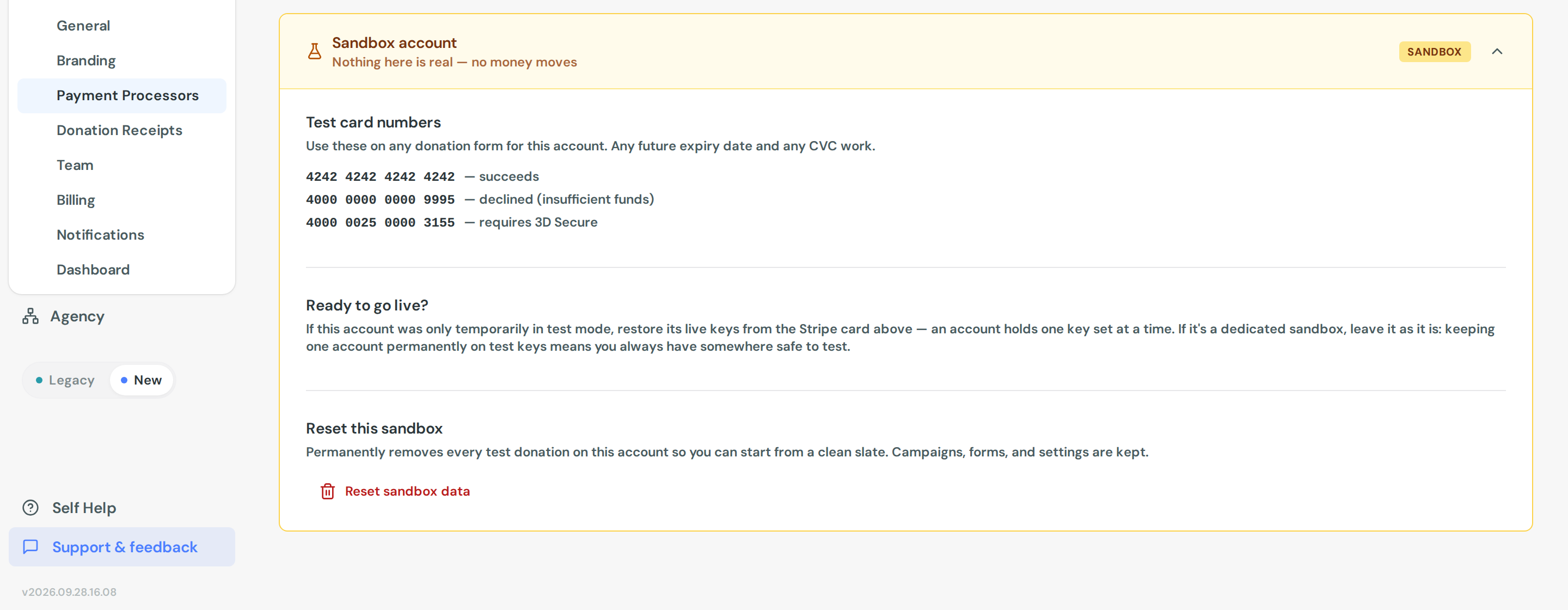
Test cards
On an account already in test mode, Donately shows the cards to use:
4242 4242 4242 4242succeeds4000 0000 0000 9995is declined for insufficient funds4000 0025 0000 3155requires 3D Secure
Any future expiry date and any CVC work.
Try more than the happy path. A declined card and a 3D Secure challenge are exactly the cases where a form's error handling turns out to be wrong.
What to check
Give your form a full run: complete a gift, confirm the donor gets a receipt, check the donation appears in your dashboard with the right campaign, and if you set up a redirect or thank-you message, confirm it behaves. See What donors see after they give.
Test donations appear in your donations list alongside real ones. Filter by Is livemode with the Test option to see only test gifts. Exports include a Test Mode column.
Be aware there is no badge on individual donation rows, and your dashboard totals do not separate test from live, so an account that spent a week in test mode will have test gifts mixed into its figures until you clear them.
Clean up
On the Payment Processors page, Delete test donations removes every test-mode donation on the account, plus any $0 cash or cheque donations. Real donations are not touched. You type DELETE to confirm, and it cannot be undone.
Do this before going live so your first real reports are clean.
Sample data is a different thing
If your dashboard is showing sample campaigns and donors, that is sample data, not test mode. It is a local demo dataset that exists only in your browser and creates nothing on the server. Wipe sample data in the banner clears it and deletes nothing real.
Test mode creates actual records with test cards. Sample data is a simulation. Do not use one to check the other.
PayPal
There is no self-serve PayPal sandbox in Donately. If a PayPal connection is in test mode, the PayPal card shows a Test mode badge, but setting that up is not something you can do yourself. Contact support if you need it.