
Connect Salesforce to sync donors and donations
Connect Donately to Salesforce, choose how contacts and opportunities are created, route gifts to Salesforce campaigns, and check what has synced.
Donately's Salesforce integration creates and updates a Contact for each donor and an Opportunity for each gift, so your CRM stays current without anyone rekeying donations.
Before you start
You need admin access in Donately, and a Salesforce edition that allows connected apps and custom fields.
Connect as a Salesforce System Administrator the first time. Donately creates its own dntly_* custom fields on your objects during setup, which needs those permissions. If you would rather the ongoing sync ran as a dedicated API-only user, connect as an admin first, then reconnect as that user once the fields exist. Donately's own configuration screen explains this and links to the permissions section of the developer documentation.
Records Donately creates take on the defaults of whichever Salesforce user is connected, so if you rely on Account or Opportunity record types, set those defaults on that user's profile.
Connect
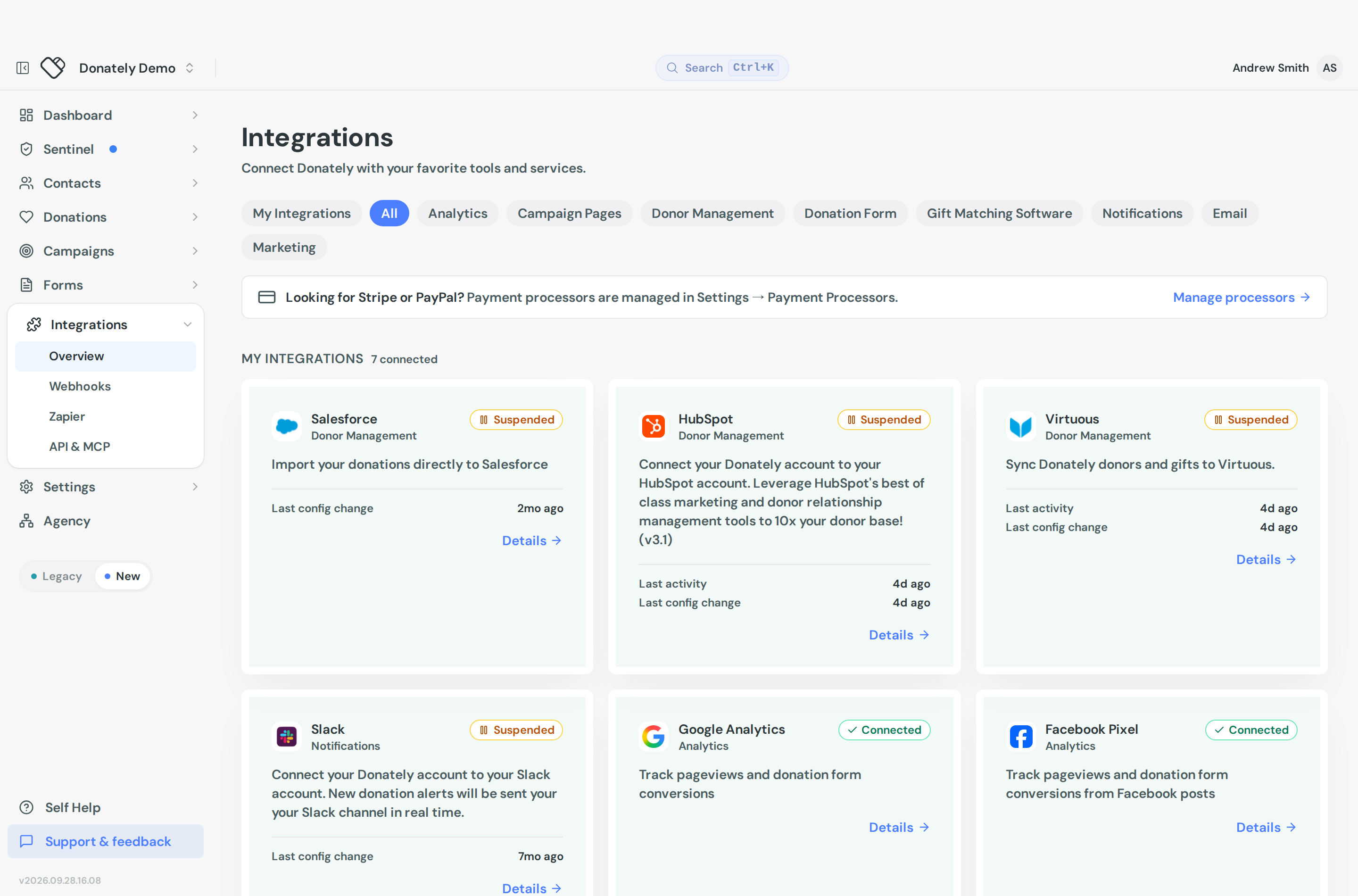
- Go to Integrations and open Salesforce. You will see Salesforce isn't connected yet.
- Choose the environment: Production, Sandbox, or My Domain. My Domain reveals a host box, which expects something ending in
.my.salesforce.com. Pasting the Lightning URL from your browser's address bar works too, and Donately rewrites it. - Select Connect Salesforce. Salesforce asks you to log in and approve access, then returns you to the integration page.
Salesforce always prompts for a fresh login, so you can connect as a different user than the one you happen to be signed in as.
Salesforce is changing how apps connect, and it does not need anything from you. Salesforce is retiring its older Connected App framework and replacing it with External Client Apps over 2026 and 2027. None of the sign-in methods it is switching off are ones Donately uses, and there is no Donately app sitting inside your Salesforce org for you to migrate, so your connection keeps working. When Donately moves its own app across, we will ask you to reconnect once. You will see a notice in your dashboard first, and it will not be an urgent job, because Salesforce is not switching off anything your current connection relies on.
Configure
Once connected, the integration page shows a Configuration accordion. Every section is closed by default and one Save changes button at the bottom saves the lot.
Connection shows the connected user, the Salesforce org and the environment, and holds Reconnect Salesforce for changing which Salesforce user the sync runs as.
Record owner takes a Salesforce User ID (the 18-character id, from Setup then Users then the id in the URL). Leave it blank to use the connected user.
Account model decides how donors attach to Accounts. Single shared account links every donor to one Account. Household account gives each donor a {Last name} Household Account in the NPSP style, and lets you change the Household name format. No account leaves it to Salesforce or NPSP.
Contact sets the Contact role added as an OpportunityContactRole on each gift, an optional contact record type, and the State & country format, which can match your org automatically or be forced to full names or two-letter codes.
Opportunity (donation) sets the stages and the Donately-specific fields: a One-time donation stage such as Closed Won, a separate Recurring donation stage if you want one (NPSP orgs usually want Pledged), plus gift type, source and fund fields and their default values. The source value accepts the tokens {campaign_title} and {fundraiser_title}.
Campaign rules route gifts to Salesforce campaigns. Rules run top to bottom and the first match wins. You can match on a specific form, campaign or fundraiser, on metadata, on recurring gifts, auto-create a Salesforce campaign from the Donately campaign or a sub-campaign from a fundraiser, or set a catch-all fallback. Without any rules, donations are not linked to a Salesforce campaign at all.
Advanced holds a JSON box for overriding the default field mapping, keyed by Person, Donation and Account. Leave it blank to use the defaults.
What the integration does not offer
There is no visual field mapper, no sync-direction setting, no sync-frequency setting and no bulk backfill of historical donations. The objects synced are fixed at Contacts and Opportunities, and the sync runs on new donations and subscription changes as they happen. Overrides go in the Advanced JSON box, and a single failed event can be retried from the activity list.
Check that it worked
Make a small test donation, then look at the integration page.
The header carries a status badge: Active, Suspended, Setup incomplete or Connection error. Recent Activity on the right lists Sync completed, Sync failed, Sync warning, Integration connected and Connection failed events. Expand a row for the time, the error or warning type, and links through to the donation and the donor. A failed row offers Re-run this sync. Use Load 20 more to page back.
To get these by email, use the Get these events by email card, which takes you to your notification settings.
See Create a test donation for how to make a safe test gift.
Pause or disconnect
Suspend syncing in the header stops new donations and donors flowing to Salesforce while keeping your configuration. Resume syncing starts it again.
Disconnect lives in the Danger zone section at the bottom of the configuration. It stops all syncing immediately and removes the connection. Data already in Salesforce is not deleted, and you would need to reconnect to start syncing again.