
Connect Stripe to accept card donations
What Stripe is and why you need it, how to connect it from Settings, what Stripe asks you for and why, and what happens if you change accounts.
Stripe is the company that actually moves the money. Donately builds and hosts your donation forms; Stripe takes the card payment and deposits it in your bank account. You need a Stripe account to accept card donations, and Donately creates one for you as part of connecting.
Before you start
Your account needs at least one admin with a billing email. If it doesn't, connecting stops with a message saying so. Add an admin under Settings → Team first.
It also helps to set your Website under Settings → General before connecting, because that is what Donately sends to Stripe as your business website.
Connect Stripe
- Go to Settings → Payment Processors.
- On the Stripe card, click Connect.
- Stripe's own signup opens. Work through it and submit.
- You are returned to Donately and your connection status syncs automatically.
Donately creates the Stripe account and pre-fills what it knows: your billing email, organisation name, country and website. Everything else is asked by Stripe, on Stripe's pages.
After you finish on Stripe you may land on Donately's older dashboard rather than this one. Your connection is still saved. Go back to Settings → Payment Processors to see it.
What Stripe asks you for, and why
Stripe is a regulated payment institution, so it has to know who it is sending money to. That means:
- Your organisation's legal details, including its tax ID or EIN.
- A representative's identity. A real person has to take responsibility for the account. In the US, Stripe usually asks this person for a Social Security number, and it will accept the last four digits in many cases. This is identity verification, not a credit check, and Donately cannot waive it or see what you enter. If your organisation genuinely has no US representative, take it up with Stripe's support.
- A bank account, where your donations are deposited.
- A statement descriptor, the text donors see on their card statement.
"Stripe requires a website, but we don't have one"
Use your Donately donation page. Stripe wants somewhere it can see what you do and what a donor is paying for, and a hosted donation page satisfies that. Set it under Settings → General as your Website before connecting, or give it to Stripe directly during signup.
Check the connection
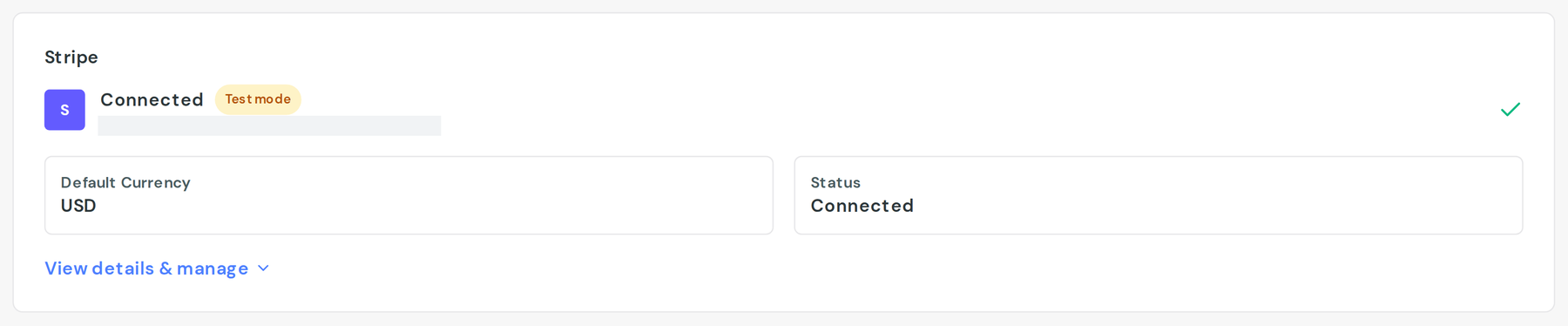
The Stripe card shows a status:
- Ready to accept payments means you're done.
- Verification required means Stripe wants more information. The card lists what's outstanding and the deadline. Follow the link into Stripe to supply it.
- Charges disabled means Stripe has stopped the account taking payments. Donations will fail until it's resolved.
- Payouts paused means you can take donations but Stripe isn't depositing them yet.
- Connected on its own means we haven't checked with Stripe recently. Open View details & manage → Tools and click Sync Stripe Account.
Bank details, payout timing and disputes all live in Stripe itself, not in Donately. Open Stripe Dashboard under Tools takes you there.
Connecting a different Stripe account
Under View details & manage → Danger zone you can Change Stripe account or Disconnect from Stripe. Both ask you to type DISCONNECT.
Read this before you do either. Recurring donations are authorised against the specific Stripe account that took them. If you connect a different Stripe account, those existing recurring donations stop processing, and donors have to set them up again.
Reconnecting the same Stripe account is safe. If you disconnected by accident, or Stripe's permission lapsed, use Connect again and re-authorise the same account: your recurring donations carry on.
If you're unsure which case you're in, contact support before disconnecting rather than after.
Test mode
Live and test are decided by the credentials your account holds, and there's no switch that flips a live account into test mode for a quick trial.
If you want somewhere safe to experiment, the Sandbox & testing panel on the same page explains the options, including keeping a separate Donately account permanently in test mode. If an account is already in test mode you'll see an amber Test mode badge and a Restore live keys button to put it back.
If something goes wrong
- The connection errored partway through. Click Connect again. Starting over is safe; it does not create duplicate accounts.
- Donations are failing. Check the status on the Stripe card first, then the same account in the Stripe Dashboard.
- Stripe is asking for something you can't provide. That part is between you and Stripe, and their support can see things we cannot. Contact us if you're not sure whether an ask is genuine.