
Change how your donation form looks
Pick a theme, set your primary color, and use custom CSS for anything else. What the Design tab controls on a Donately form, and what it no longer does.
A form's appearance comes from two settings and one escape hatch. Open the form, then Appearance, which opens on the Design tab.
Theme
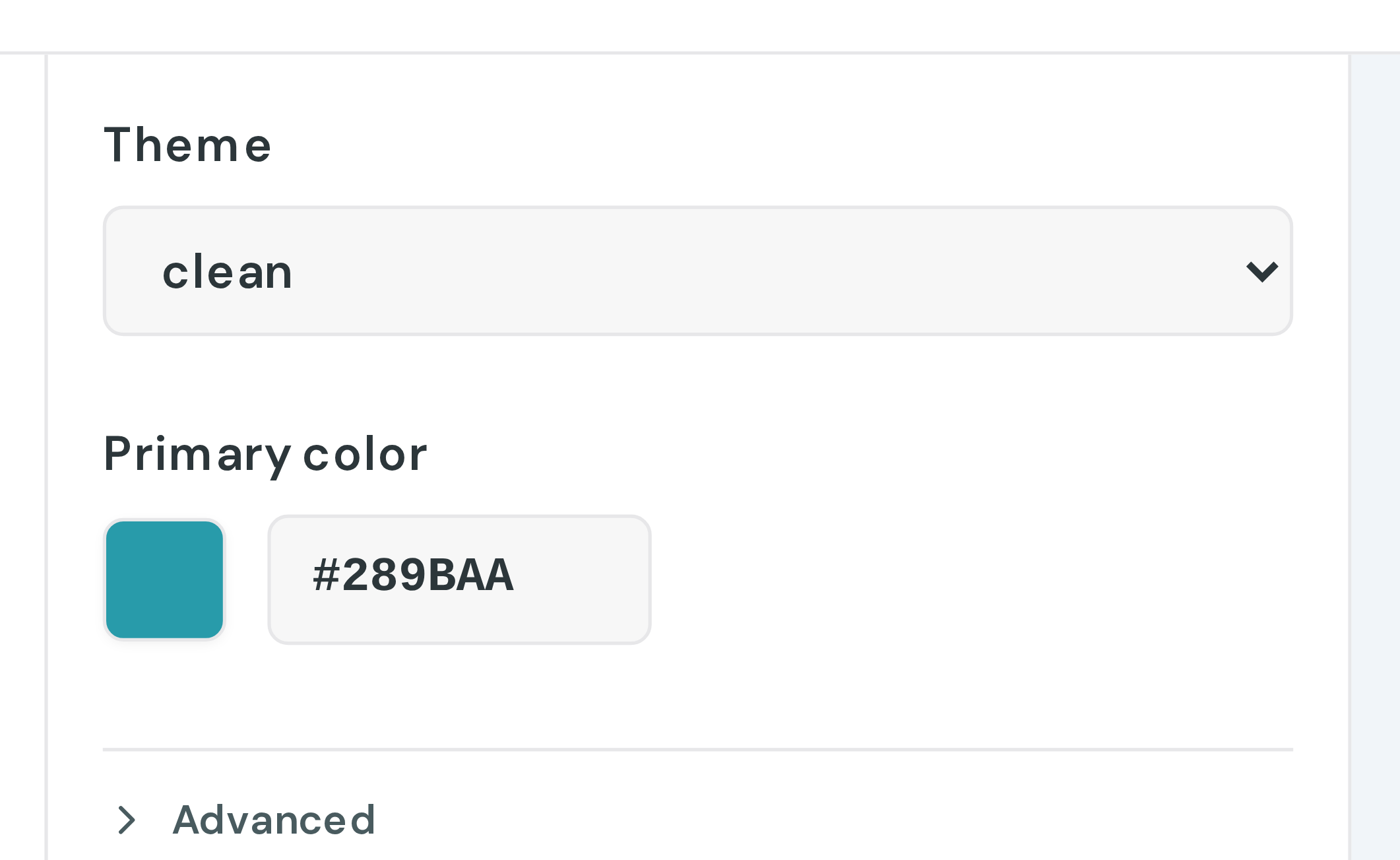
Pick a Theme from the list. The theme sets the layout, typography, spacing and button shapes all at once, and the preview on the right updates as you choose.
A v6 form offers Traditional, Contemporary, Rounded and Brutal. A v7 form offers a different set: Default, Minimalist, Clean, Traditional, Contemporary, Modern, Colorful and Editorial.
If your form is already on an older v6 theme (classic, modern, clean or monochromatic) it stays in the list marked (legacy), so the form keeps rendering as it always has and you can switch back after trying something else. Those four are no longer offered to new forms: two of them hardcode their button colours, so the primary color below cannot move them, and the other two are near-duplicates of what is on offer.
Primary color
Primary color sets the donate button, highlights and accents. Click the swatch to pick a color, type a hex value, or choose one of the presets.
Use a solid 6-digit hex value such as #3cd99e. Transparency is not supported. New forms start from the primary color on your account, so most forms need no change here.
Custom CSS
Anything the theme and primary color do not cover goes in Custom CSS, under Advanced on the Design tab.
Target the form's .dntly- classes:
.dntly-donate-btn {
  border-radius: 9999px;
}
Custom CSS is injected into the form, so it reaches parts of the styling the theme and primary color do not expose.
What moved, and what is no longer editable
If you used the old dashboard's design panel, several things have changed.
Fonts, field borders, padding and individual button colors are no longer editable. The old dashboard exposed about thirty separate style fields. The builder now models the theme and the primary color, and leaves the rest to the theme.
Forms you built in the old dashboard keep the styling they already have. Those older settings are preserved when you save, so nothing about the form changes. You just cannot edit those individual values here any more. Custom CSS is the way to override them.
Language has a tab of its own. The form's locale and custom wording live under Appearance, on the Language tab, not in Design.
Steps live in Layout & Steps, not Design. That is where you add and arrange them.
Nothing appears until you publish
Design changes save to your draft as you work, and the live form does not change until you click Publish. If you want to keep a version before experimenting, use Save to name a save point first.