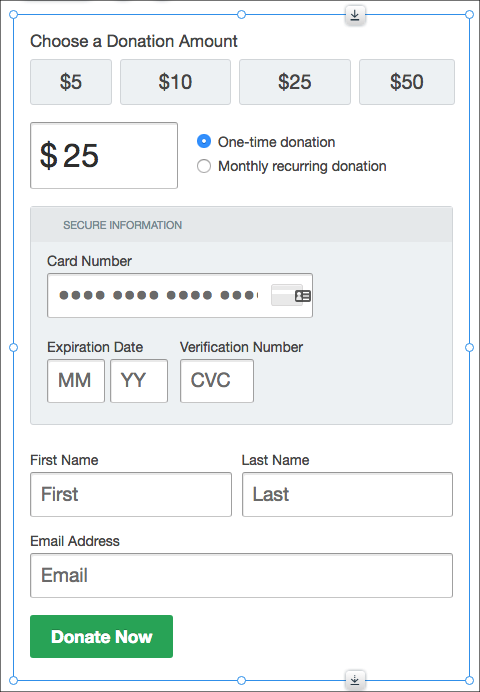
Embedding a Donately donation form into a Wix site
How to embed a Donately donation form in a Wix site using a Custom Element, and why Apple Pay and Google Pay cannot work inside Wix's HTML Code block.
Donately donation forms can be embedded directly into any Wix site.
You will need to be on a paid Donately plan to embed a donation form. If you are not a customer yet, see our pricing here. If you are on the free tier, you can pick a plan here.
Pick the right Wix element first
Wix gives you two different ways to add outside code to a page, and the choice decides whether your donors can use Apple Pay and Google Pay.
- Custom Element puts the form directly into your page. Every payment method works, including Apple Pay and Google Pay. This is the method we recommend.
- HTML Code puts the form inside a separate, locked-down frame. Cards, bank payments (ACH) and PayPal work, but Apple Pay and Google Pay cannot.
Both are covered below. Unless you have a reason to use the HTML Code block, use the Custom Element.
Recommended: embed with a Custom Element
The Custom Element requires a Wix Premium plan with your own domain connected and Wix ads turned off. Most sites on a custom domain already have all three.
Until all of that is in place, Wix removes the element from your published page before the page is even sent, so there is nothing on the page to inspect. If the spot is blank, view the page source and search for wix-disabled-custom-element-reason. Wix writes the reason there, and required-wix-premium-account means the plan or domain is the problem rather than anything in the setup below.
Test on your published site, not in preview. Wix shows custom elements inside a frame while you are in the editor and in preview, which is the very thing that blocks mobile wallet. The wallet button will be missing there even when everything is set up correctly, and the first person to test in preview will see no wallet and conclude it failed. Publish the page and check the live site.
1. Create your Donately form. Customize your donation form to your liking.
2. Collect the three values you need. Open the "share" section of the form builder and switch to the Advanced Embed code. The values are inside that snippet rather than in labelled fields, so copy them out of it:
- the account ID, which starts with
act_ - the form ID, which starts with
frm_ - the Stripe publishable key, which starts with
pk_live_
3. Add the element in Wix. Find the page where you want the form, then click "+", then "Embed Code", then "Custom Element".
4. Set the source. Choose "Server URL" and enter:
https://cdn.donately.com/core/6.0/donately-element.js
5. Set the tag name. This field is easy to miss: Wix puts a "Turn on Dev Mode" panel between the Server URL box and the tag name box, so the first box looks like the whole form. Scroll down the Element Attributes panel to find it, then enter:
donately-donate-form
If you skip this, the element never loads and the spot on your page stays empty with nothing to diagnose.
6. Add the attributes using the values from step 2:
account-idyour account IDform-idthe ID of the form you want to showstripe-keyyour Stripe publishable key
7. Position the element where you want the form, then publish the site and open the published page. The form appears where you placed the element, and offers mobile wallet alongside your other payment methods.
If the form appears but mobile wallet does not, check that you are looking at the published page rather than preview, and that your Wix plan has a connected domain with ads removed.
Why Apple Pay and Google Pay cannot work in the HTML Code block
A form embedded with Wix's "HTML Code" element cannot offer Apple Pay or Google Pay. Cards, bank payments (ACH) and PayPal all work normally. Only the mobile wallet option is affected.
This is a limitation of the Wix element, not of your Donately account or your donor's phone. Wix's HTML block puts whatever you paste into it inside a separate, locked-down frame, and browsers refuse to run mobile wallet payments inside a frame like that. There is nothing we can change on the Donately side to work around it, and it applies on every Wix plan, free or paid.
Two things worth knowing, because both come up often:
- This is not a domain registration problem. Adding your domain under Apple Pay in your Donately payment settings is still worth doing, but it will not make the wallet button appear on a form embedded this way. If Donately has asked you to add a domain and the button still does not show up, this is usually why.
- Your donors' devices are fine. An iPhone with a card in Wallet will still not see the option on this kind of embed.
If mobile wallet matters to you and the Custom Element is not an option, link to your Donately-hosted donation page instead of embedding the form. Apple Pay and Google Pay work there, because the page is not inside a frame. You can find the link in the "share" section of the form builder. Point your "Donate" button or menu item at it, and donors get the full set of payment options.
Older method: the HTML Code element
Use this only if the Custom Element is not available to you. Note that it needs an extra wrapper around the Donately code, or the form will not show up on the live site.
1. Create your Donately form. Customize your donation form to your liking, then copy the Advanced Embed code from the "share" section of the form builder.
2. Navigate to Wix. Once signed in, find the page where you want to embed the form. Most users have a separate "Donate" page, though you can embed the form on any page.
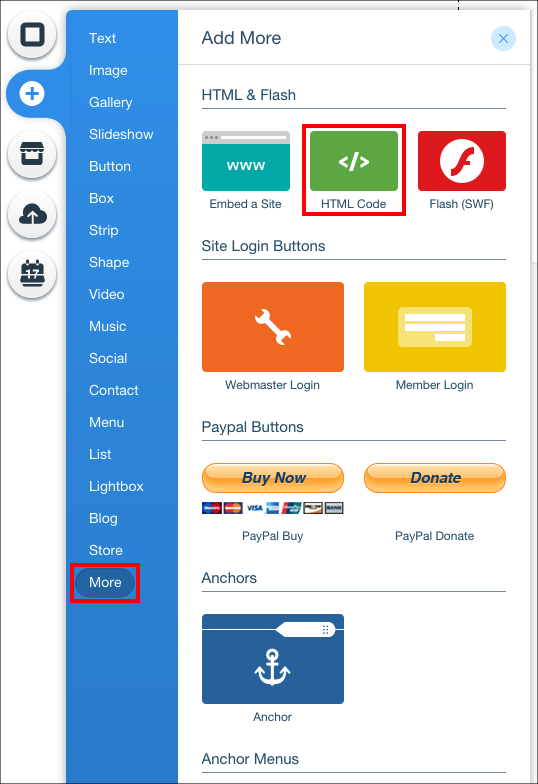
3. Add an "HTML Code" element. Click the "+" symbol from the left-hand menu, then click "More" at the bottom of that menu. Once there, click "HTML Code".
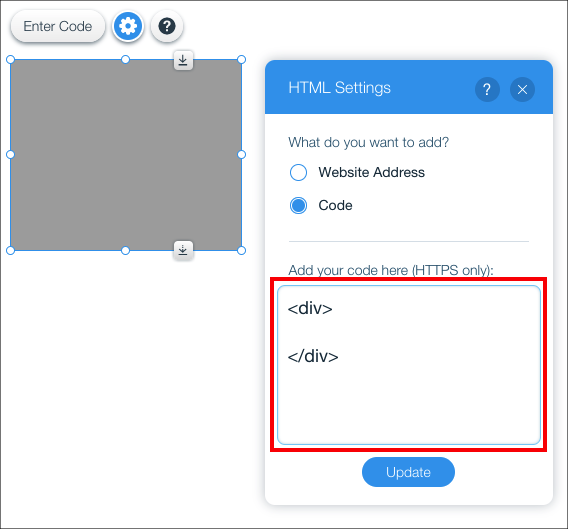
4. Insert your Donately form code. Position the HTML block where you want the form to go on the page. Once you like the location, click "Enter Code". Because of how Wix publishes this block, you must wrap your Donately code in two extra elements.
Before you paste the Donately code from step 1, put this into the empty box:
<div>

</div>
Your code box will look like this at this point:
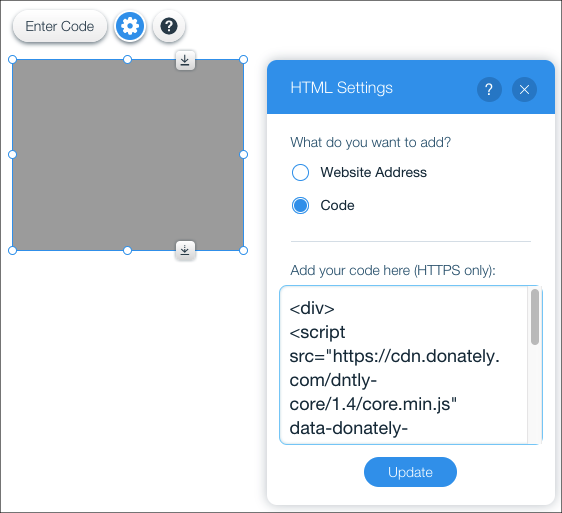
Now paste the code you copied from Donately in step 1 in between those two lines, so that the top of your code box looks like this:
Click "Update" and the form should show up. You may need to publish the site before the form will show in preview mode.
You are then able to adjust the box until you are satisfied with the size.